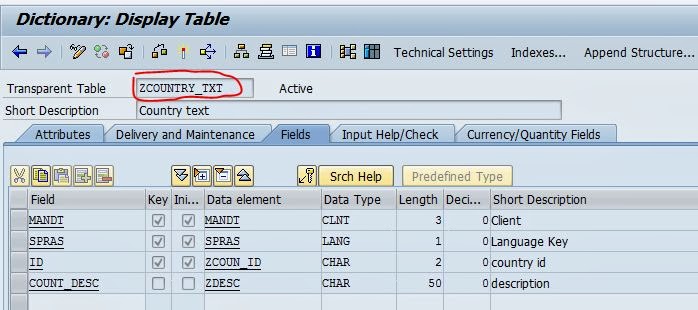
Step1. Go to Tcode- SE11

Step2. Create a structure. Provide the structure name and click on Create button.

Step3. Select the Radiobutton and click on the continue button.

Step4. Provide the short description, In the components tab provide some fields and activate the structure.

Step5. Create a table. Go to SE11 and provide the table name and click on the create button.

Step6. Provide the delivery class and at last click on technical settings.

Step7. Provide the data class, size category , click on save button. At last click on the back button.

Step8. Provide short description and use the structure ZADDRESS as include structure in the table and activate it.

Step9. The above table is activated. Now lets use the same structure again in the table and try to activate it.

Step10. On activation it gives the below error.

Step11. Remove the second include structure for the table and activate it.

Step12. Select a row where to add the structure and then click on EDIT menu and then go to Include->Insert.

Step13. Provide the structure name and the suffix name and then click on the continue button.

Step14. Now activate the table .

Step2. Create a structure. Provide the structure name and click on Create button.
Step3. Select the Radiobutton and click on the continue button.
Step4. Provide the short description, In the components tab provide some fields and activate the structure.
Step5. Create a table. Go to SE11 and provide the table name and click on the create button.
Step6. Provide the delivery class and at last click on technical settings.
Step7. Provide the data class, size category , click on save button. At last click on the back button.
Step8. Provide short description and use the structure ZADDRESS as include structure in the table and activate it.
Step9. The above table is activated. Now lets use the same structure again in the table and try to activate it.
Step10. On activation it gives the below error.
Step11. Remove the second include structure for the table and activate it.
Step12. Select a row where to add the structure and then click on EDIT menu and then go to Include->Insert.
Step13. Provide the structure name and the suffix name and then click on the continue button.
Step14. Now activate the table .