Declaring any Data Object Referring to DATA is a generic type declaration . This Data Reference variable can hold the address of any DATA Object may be Character, Integer, packed Number., String , Structure by using the keywordGet Reference of . Then the Value at this address can be assigned to the Field Symbol by de-referencing the referencing variable (Operator: ->* ).Step1. Create a Program and execute it.
Step2. The O/P is as shown below:
Step1. Create the below program and call a screen to dynamically put the table records on the alv.
Step2. Implement the PBO module.
Step3. Provide a table name and if it is incorrect we received a validation error.
Step4. Provider a correct table name and F8.
Step5. The alv screen appears.
Step6. Run -3 with table name - VBAK.
Step7. The alv screen appears.
Step8. Run -3 with table name - VBRK.
Step9. The alv screen appears.
Menu Exit Provides an option to the customer/user to enhance the menu option on the standard screen. The below post describes how to find out if any Menu exit is available for any screen or not. If yes then how to implement it to achieve menu enhancement.
For example purpose let's try the menu exit option for the sap editor screen.
To search if any menu exit is available or nor Tx- SMOD is used and to implement the Menu Exit Tx- CMOD is used.-------------------------------------------------------------------------------------------------------------Step1. Go to Tx- SMOD.
Step2. Press F4 button.
Step3. Click on continue.
Step4. Click on the Search button.
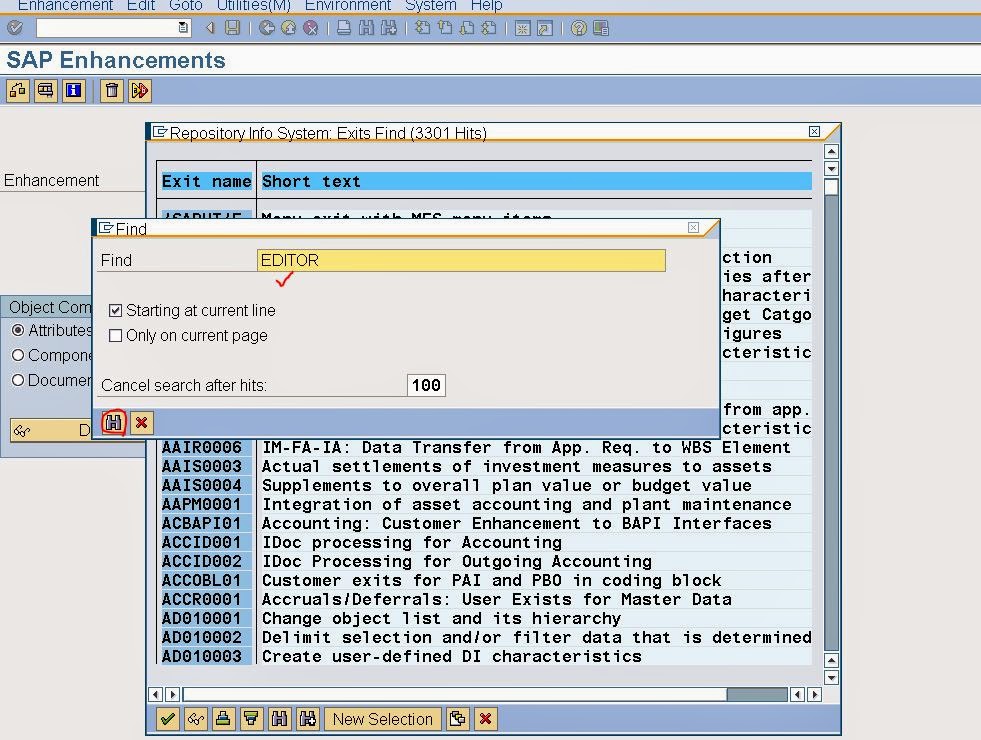
Step5. Search with editor key word.
Step6. Select (DOUBLE CLICK )one enhancement- SEU00002.
Step7. Select (DOUBLE CLICK )one enhancement- SEU00002.
Step8. Click on Display button.
Step9. Click on components button.
Step10. Well it provides Function Codes & Function Module exits. With the help of function code we can define a new menu option and function module exit can be used where the user can provide the code to react on the action when user clicks on the menu option.
Step11. To implement the Enhancement go to Tx- CMOD.
Step12. Provide a Project Name & click on the create button.
Step13. Provide a short text and click on Enhancement assignment button.
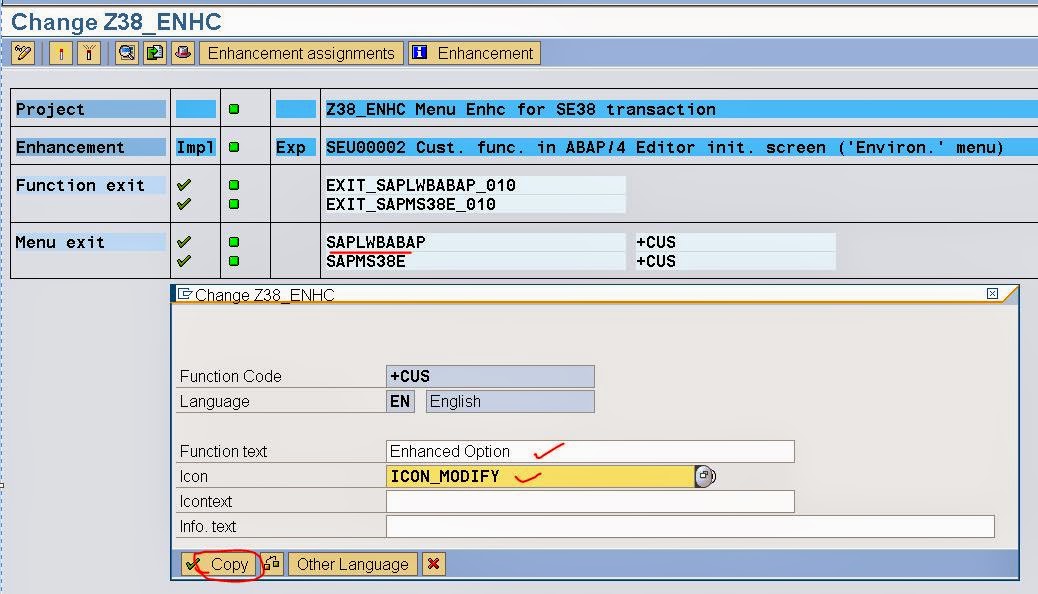
Step14. Provide the enhancement name that we decided from Tx- SMOD & hit ENTER BUTTON. Then CLICK ON COMPONENTS button.
Step15. Under Menu exit- double click on First option (SAPLWABAP) .
Step16. Provide a function text and icon and at last click on Copy button.
Step17. To define the code when user click on the menu option, double click on the first FM Exit.
Step18. Double click on the Include name and then hit Enter button to Create an implementation.
Step19. Click on Edit button, provide an appropriate code and activate it. At last go back.
Step20. Activate the project.
Step21. Go to Tx- SE38. Under Utilities We can find the Menu Option as : Enhanced Option . Click on this.
Step22. The implemented function module exit code triggers and we received a message.
Step23. Go back to the project and deactivate it.
Step24. Again lunch Tx- SE38 and this option is not available as the project is deactivated.